QR Code PaymentCoffee merchant · Today 10:24Success
-Rp 18.000 PLL eWallet
Wallet
Everyday payments, made local.
LiteSupports the following payment methods


Activities
Bank Top upBCA Virtual Account · YesterdaySuccess
+Rp 500.000
Apple ID9 July · 14:32Success
-Rp 230.340Transfer to Lin Ke27 June · 11:05Success
-Rp 125.000Payment refund26 June · 09:18Refunded
+Rp 88.000No matching activities
Notifications
You're all caught up
No unread notifications.
Notification
Apple Pay
PAYMENT METHOD
Activate Apple Pay
Once enabled, you can use Apple Pay to complete your purchases.
● PayApple Pay
Bank Card
SECURE LINK
Add Your Bank Card
Adding a bank card enables payments and spending.

Your card has been successfully
linked to your account.
5s
Bank Cards
The first card is your default payment card. Drag to change the order.
Profile
Account Security
80%Security score4 / 5
Settings
Language
Appearance
Currency
User Agreement
PAYMENT SERVICES
Payment User Service Agreement
Effective 23 August 2026
1. About this prototype
PLL eWallet demonstrates a mobile payment experience. It does not move real money, store live card credentials, or create a financial account.
2. Payment methods
You may link a mock bank card or Apple Pay profile for demonstration. Entered information stays in this browser and should never be real financial data.
3. QR Codes and payment codes
Camera access is used only when you choose to scan. Generated QR Code and payment barcode values are temporary prototype identifiers and cannot complete a real payment.
4. Security
Do not share payment PINs, screenshots, verification codes, or card credentials. PLL eWallet will never ask for them through a message or phone call.
5. Local data
Prototype preferences and linked-state simulations are stored locally on your device. Clearing browser storage resets the Lite experience.
6. Your confirmation
By choosing Agree, you confirm that you understand this is a non-transactional demonstration and that you will use mock data only.
Payment Tutorial
QR CODE
Five simple steps
Set up once, then scan or show a QR Code when you pay.
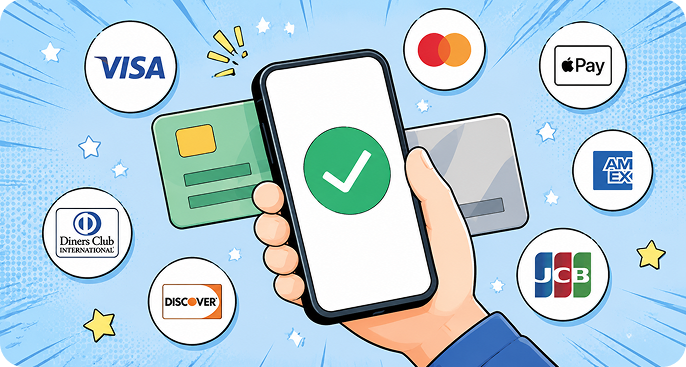
Add a payment method
Connect Apple Pay or link an international bank card.
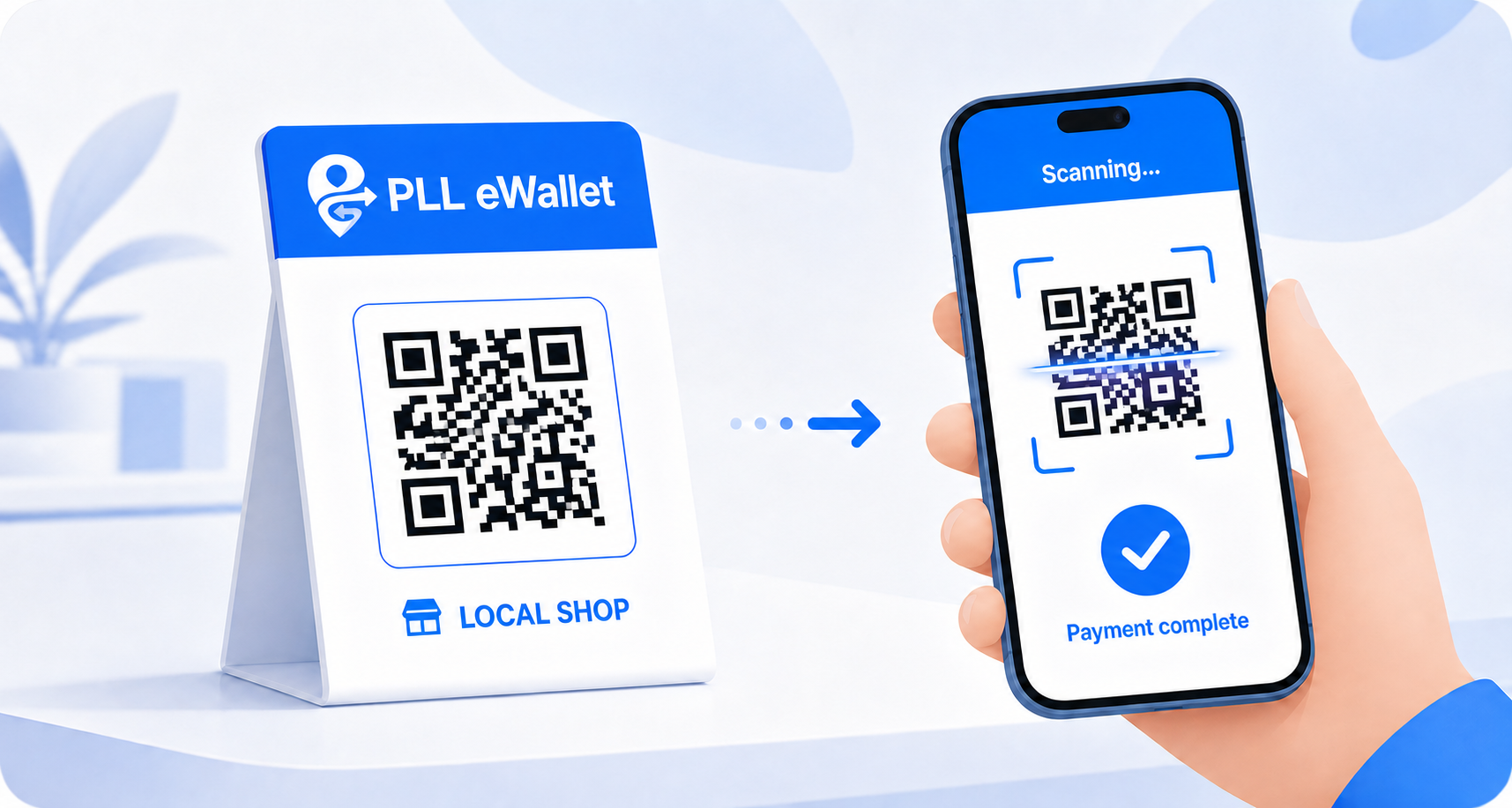 SCAN QR CODE
Scan a merchant QR Code
Use the scan button and keep the merchant QR Code inside the frame.
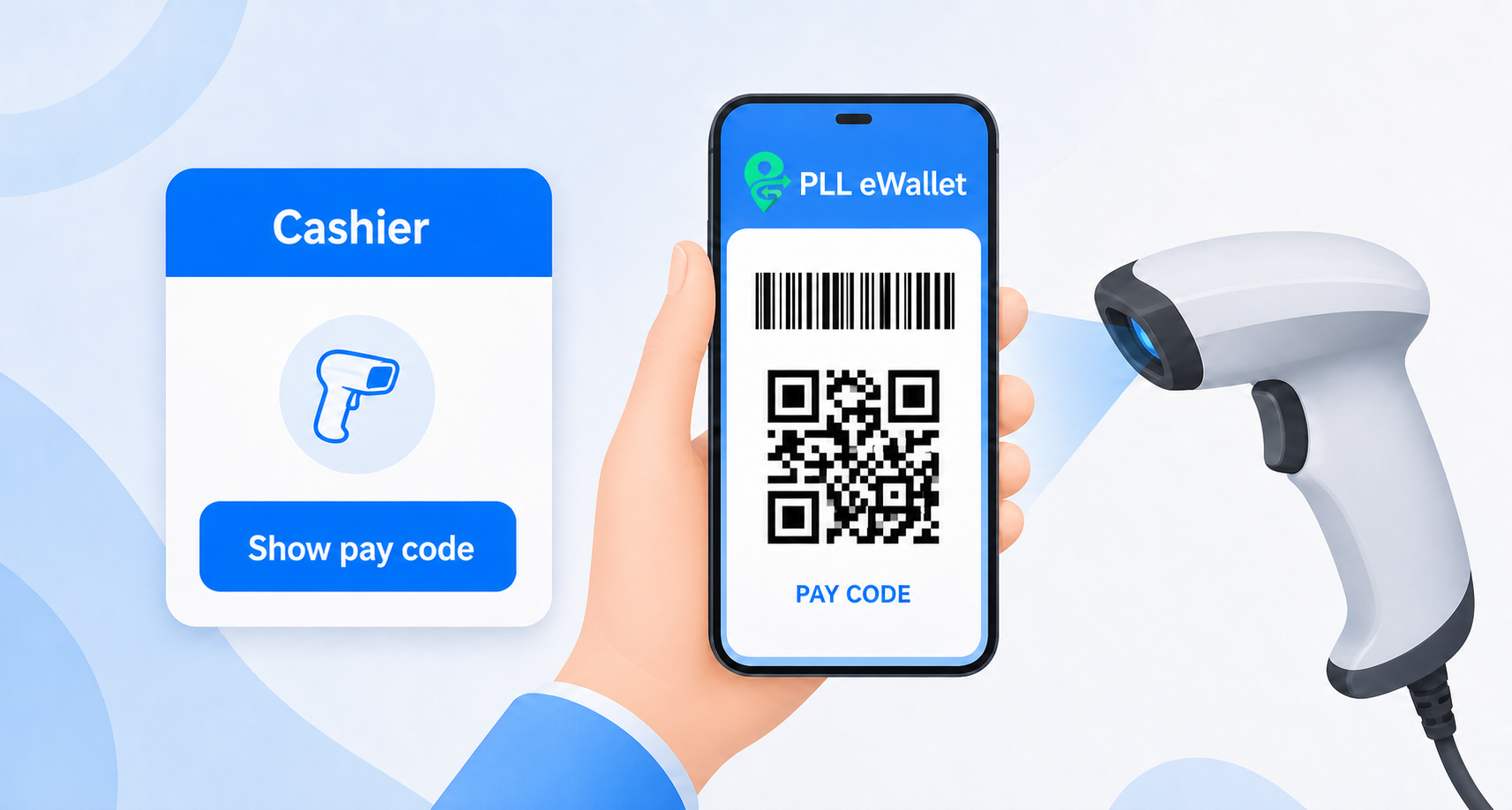 SHOW QR CODE
Or show your QR Code
Let the cashier scan your temporary QR Code or payment barcode.
Choose a payment method
Select Apple Pay or your linked bank card, then confirm with your six-digit payment PIN.
Check the result
Confirm the amount and success message before leaving the cashier.
QR CODE SECURITYProtect your QR Code
Your QR Code and payment barcode can authorize a payment. Do not screenshot, forward, or let anyone copy them.
- Only open the QR Code at the cashier
- Check the payment method first
- Close the code after payment
Confirm payment
KS
Paying to
Kopi Sudut Jakarta
Local coffee shop
Enter an amount greater than zero.
This is a mock payment. No real money will be transferred.
Payment PIN
AUTHORIZE
Enter your 6-digit PIN
This prototype accepts any six digits.
Processing payment
Please wait. Do not close this page.
Rp 100.000Payment successful
Rp 100.000
- Merchant
- Kopi Sudut Jakarta
- Payment method
- Bank card
- Time
- Transaction ID
This is a mock transaction stored only in this browser.
QR Code
Refreshes in45s
QR CODECustomer-presented payment code
OR
Present one QR Code to the cashierDo not screenshot or share this page.